
White Screen of Death
Introduction:
In WordPress, not all errors display clear messages. Some issues, like the “White Screen of Death,” can be more difficult to diagnose because the site simply appears blank without any visible explanation. This makes it essential to understand debugging techniques and common causes in order to effectively identify and resolve the problem.
Error Name:
White Screen of Death
Description:
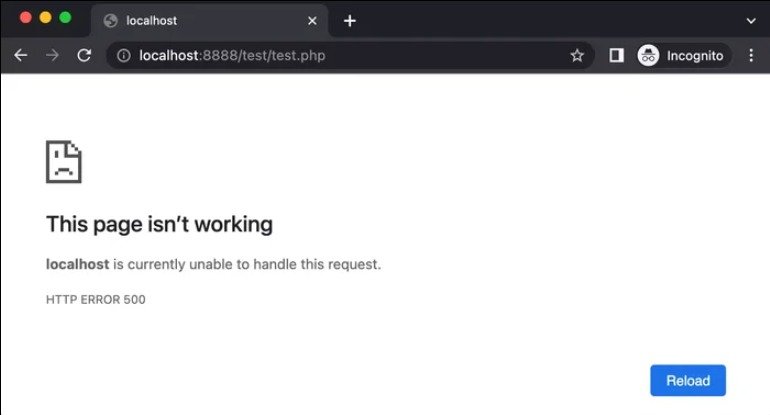
The website displays a completely blank page with no error message.
Causes:
– PHP errors
– Plugin conflicts
– Theme issues
Solution:
1. Enable debug mode in wp-config.php:
define(‘WP_DEBUG’, true);
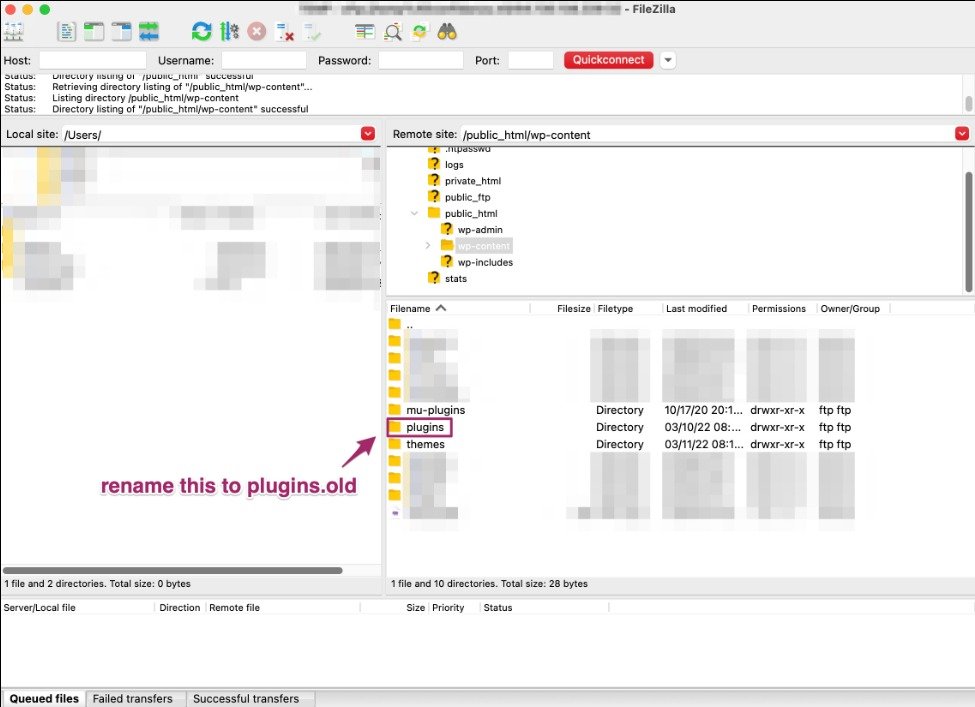
2. Disable plugins by renaming the plugins folder.
3. Switch to a default theme.
4. Identify and fix the issue.
Implementation:
An incompatible plugin was installed to generate the error, then removed to fix it.
What I Learned:
Through this exercise, I learned that the “White Screen of Death” is often caused by underlying PHP errors, plugin conflicts, or theme issues that are not immediately visible. I understood the importance of enabling debug mode in WordPress to reveal hidden errors and better understand what is going wrong.
I also gained experience in troubleshooting by disabling plugins and switching themes to isolate the source of the issue. This process helped me see how conflicts between components can affect the entire website.
Finally, by intentionally installing an incompatible plugin and then removing it, I reinforced my understanding of how to diagnose and fix this type of error, improving my ability to handle silent failures in web development environments.
Proudly powered by WordPress